Block Device Code Flow in Microsoft 365 to Stop Token Phishing
How attackers abuse Microsoft device code authentication and how organizations can block device code flow using Conditional Access.
Microsoft 365 account security is not just about passwords and MFA anymore.
The FBI recently issued a warning about a phishing-as-a-service platform called Kali365, which is being used to target Microsoft 365 accounts. This attack is concerning because it abuses a legitimate Microsoft authentication method called device code flow.
In this type of attack, the user is tricked into going to Microsoft’s real device login page and entering a code provided by the attacker. The login page is legitimate. The Microsoft sign-in is legitimate. The user may even complete MFA successfully.
The problem is that the user is unknowingly authorizing the attacker’s session.
What Is Device Code Flow?
Device code flow is a Microsoft authentication method designed for devices or applications that cannot easily present a normal browser-based sign-in experience.
Common examples include:
| Use Case | Example |
|---|---|
| Command-line tools | Azure CLI, Microsoft Graph CLI, PowerShell authentication |
| Limited-input devices | Teams Rooms, Teams phones, kiosks, shared devices |
| Legacy workflows | Older tools or scripts that require entering a code at microsoft.com/devicelogin |
| Developer/admin workflows | Admins or developers authenticating from non-browser tools |
For many small and mid-sized businesses, device code flow is rarely needed for normal day-to-day Microsoft 365 usage.
Most users accessing Outlook, Teams, OneDrive, SharePoint, and Office apps do not need device code authentication.
How Device Code Phishing Works
| Step | What Happens |
|---|---|
| 1. Phishing lure | The attacker sends an email pretending to be a trusted Microsoft 365, document sharing, or cloud service notification. |
| 2. Device code provided | The email includes a code and instructs the user to visit Microsoft’s legitimate device login page. |
| 3. User authenticates | The user enters the code, signs in, and may complete MFA. |
| 4. Attacker receives access | The attacker receives OAuth access or refresh tokens for Microsoft 365. |
| 5. Account access begins | The attacker may access Outlook, Teams, OneDrive, SharePoint, or other Microsoft 365 services. |
This is what makes the attack dangerous.
The user is not necessarily entering credentials into a fake website. They may be signing in through Microsoft’s real authentication page.
MFA may still be satisfied.
The issue is that the user is approving access for the attacker.
Why This Matters
Many organizations assume they are protected because MFA is enabled.
MFA is still important, but this attack shows why MFA alone is not enough.
Device code phishing can allow attackers to obtain access tokens after the user completes a legitimate Microsoft sign-in process. Once the attacker has access, they may be able to access email, files, Teams messages, or other Microsoft 365 resources.
This is especially risky because the activity may look less obvious than a traditional failed login attempt from a foreign country.
Recommended Control: Block Device Code Flow
The best Microsoft-native control is to block device code flow using Microsoft Entra Conditional Access.
This is a strong control because most organizations do not need device code flow for normal business operations.
Before enabling the block, review your sign-in logs to confirm whether the flow is being used legitimately.
In one recent tenant review, only one device code flow attempt appeared in six months of logs. That is a strong signal that the authentication method is not business-critical and can likely be blocked safely.
How to Review Device Code Flow Usage
Before enforcing the block, review current device code flow activity in the sign-in logs.
Go to:
Microsoft Entra admin center
Identity > Monitoring & health > Sign-in logs
Set the time range to a longer period, such as 30 days, 90 days, or the longest available range for your tenant. Device code flow is often uncommon, so a short time window may not show any activity.
Add a filter for:
Original transfer method: Device code flow
This filters the sign-in logs to only show events where device code flow was used.
After applying the filter, review any matching sign-ins for:
| Field | Why It Matters |
|---|---|
| User | Shows which account attempted the sign-in |
| Application | Helps identify Azure CLI, Graph CLI, Teams devices, or suspicious apps |
| IP address | Helps determine whether the sign-in came from an expected location |
| Location | Useful for identifying suspicious geography |
| Authentication requirement | Shows whether MFA was involved |
| Conditional Access | Shows whether policies applied |
| Result | Shows whether the sign-in succeeded, failed, or would have been blocked |
How to Block Device Code Flow in Conditional Access
The screenshot below shows the full Conditional Access policy configuration used to block device code flow. The numbered callouts match the configuration steps.
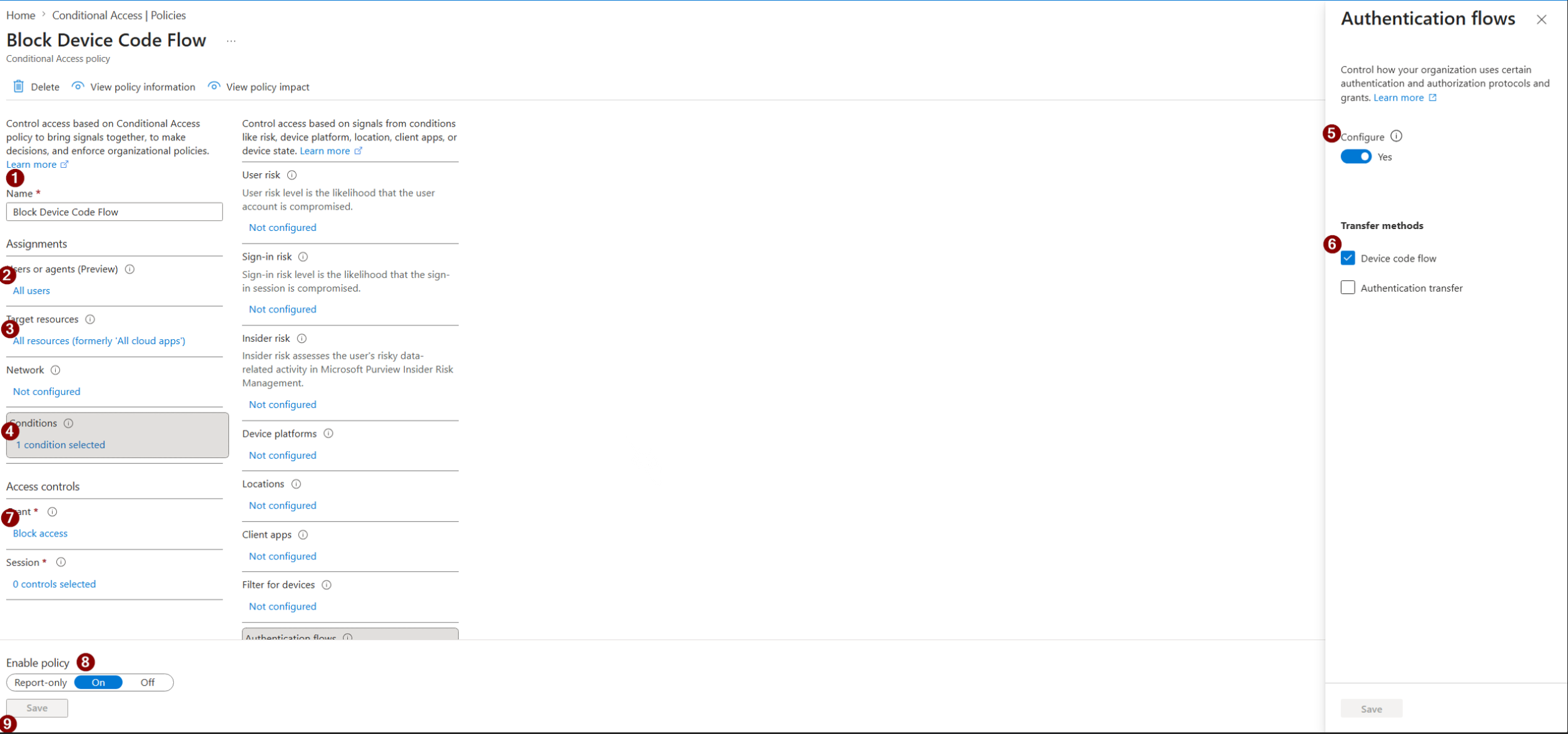
Conditional Access Policy Configuration
Create a new Conditional Access policy with the following settings:
| Area | Setting |
|---|---|
| Policy name | Block Device Code Flow |
| Users or agents | All users |
| Exclusions | Emergency access / break-glass accounts only |
| Target resources | All resources |
| Conditions | Authentication flows |
| Authentication flows | Configure: Yes |
| Transfer methods | Device code flow |
| Authentication transfer | Unchecked |
| Grant | Block access |
| Enable policy | Report-only for initial testing, then On |
Recommended Rollout
Start the policy in Report-only mode so you can confirm the impact before enforcement.
After reviewing the sign-in logs and confirming there are no legitimate business processes using device code flow, change Enable policy to On.
Important Notes
- All resources was previously labeled All cloud apps in Conditional Access.
- Do not broadly exclude administrators unless there is a documented business reason.
- Admin accounts are high-value targets, and device code phishing against an admin account can be especially damaging.
- Leave Authentication transfer unchecked unless you are intentionally creating a separate policy for that use case.
After saving the policy, review Policy impact and the Sign-in logs to confirm the policy is matching only device code flow activity.
Test the Conditional Access Policy with PowerShell
After creating the policy, test it with Microsoft Graph PowerShell before fully enforcing it. This confirms that Conditional Access is detecting device code flow correctly.
Use a non-critical test account or your own admin account if you are comfortable validating the behavior. Do not use a break-glass account for testing because emergency access accounts should usually be excluded from Conditional Access policies.
Install the Microsoft Graph module if needed:
Install-Module Microsoft.Graph -Scope CurrentUser
Start a device code sign-in attempt:
Connect-MgGraph -Scopes "User.Read" -UseDeviceAuthentication
PowerShell should display a message telling you to open Microsoft’s device login page and enter the code shown in the PowerShell window.
Example behavior:
To sign in, use a web browser to open https://microsoft.com/devicelogin and enter the code shown in the PowerShell window.
Complete the sign-in using the test account.
Review the sign-in logs:
Go to:
Microsoft Entra admin center
Identity > Monitoring & health > Sign-in logs
Look for the following:
| Field | Expected Result |
|---|---|
| Application | Microsoft Graph Command Line Tools |
| Authentication flow | Device code flow |
| Conditional Access | Policy shows as applied or report-only failure |
| Result | Success in report-only mode, blocked when policy is enabled |
| IP address | Matches your test location |
| User | Matches the test account |
Open the sign-in event and review the Conditional Access tab.
If the policy is in Report-only mode, the sign-in may succeed, but the logs should show that the policy would have blocked the attempt.
Turn the policy on and test again:
After validating the report-only result, change the policy to On and run the same PowerShell command again:
Connect-MgGraph -Scopes "User.Read" -UseDeviceAuthentication
This time, the sign-in should fail because Conditional Access is actively blocking device code flow.
Monitoring and SIEM Alerting
Blocking device code flow reduces the risk, but it is still useful to monitor for future attempts.
If an attempt shows up after the block is in place, it gives the security team something specific to review. It may be a legitimate admin tool that needs a different sign-in method, or it may be a sign that a user was targeted with device code phishing.
This is useful because the Conditional Access policy stops the authentication attempt, but the alert helps identify the activity behind it. Without monitoring, the attempt may be blocked, but no one may know that a user or attacker tried to use that method.
Microsoft Sentinel Detection Example
If Microsoft Sentinel is connected to Entra ID sign-in logs, you can create an analytic rule to detect device code flow activity.
SigninLogs
| where AuthenticationProtocol =~ "deviceCode"
    or AuthenticationProtocol =~ "deviceCodeFlow"
    or AuthenticationProtocol has "device"
| extend
    AccountCustomEntity = UserPrincipalName,
    IPCustomEntity = IPAddress,
    Result = iff(ResultType == 0, "Success", "Failure")
| summarize arg_max(TimeGenerated, *) by CorrelationId, UserPrincipalName, AppDisplayName, IPAddress, ResultType
| project
    TimeGenerated,
    AccountCustomEntity,
    IPCustomEntity,
    UserPrincipalName,
    AppDisplayName,
    ClientAppUsed,
    AuthenticationProtocol,
    IPAddress,
    Location,
    ConditionalAccessStatus,
    Result,
    ResultType,
    ResultDescription,
    RiskState,
    RiskLevelAggregated,
    RiskLevelDuringSignIn,
    CorrelationId
Validate the query against known test events before enabling the analytic rule. Tenant logging schemas can vary, so confirm that the query returns the expected device code sign-in activity in your environment.
Bottom Line
Device code phishing abuses legitimate Microsoft authentication behavior. MFA alone may not stop it because the user can be tricked into completing MFA for the attacker’s session.
For most Microsoft 365 tenants, blocking device code flow is a practical, low-impact security control that can significantly reduce exposure to token-based phishing attacks.
Start in report-only mode, validate usage, exclude only emergency access accounts, then enforce the block.