

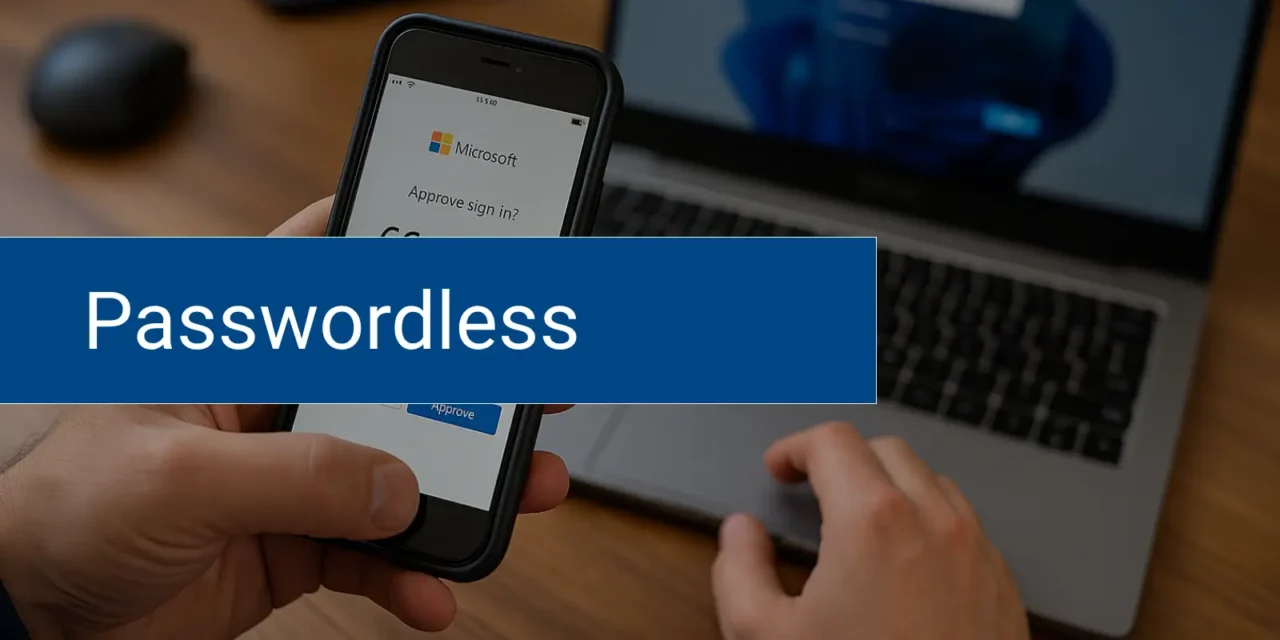
🔐 Go Passwordless: How to Use Microsoft Authenticator and Conditional Access for Secure Office 365 Logins
Tired of password resets, phishing attempts, and the constant worry that someone might guess or steal credentials? It’s time to move forward. Microsoft 365 now supports passwordless login using the Microsoft Authenticator app combined with Conditional Access in Entra ID (formerly Azure AD).
This is one of the easiest ways for small and mid-sized businesses to drastically improve security without making life harder for users.
💡 Why Go Passwordless?
Here’s the harsh truth: passwords are the weakest link in your security chain.
- They get reused across personal and business sites.
- They’re phished constantly.
- They cause headaches for your help desk and your users.
Passwordless login eliminates that vulnerability and replaces it with something users already have—their mobile phone and biometrics or a secure PIN.
🔧 What You Need Before You Start
To enable passwordless login with Microsoft Authenticator, make sure you have:
- Microsoft 365 with Entra ID (P1 or P2 recommended for Conditional Access)
- Modern authentication enabled (default in most tenants)
- Microsoft Authenticator app installed on user devices
- Optional: Intune for managing mobile/desktop compliance (recommended)
🔐 Step-by-Step Setup: Passwordless with Authenticator
1. Enable Passwordless Authentication in Entra ID
- Go to the Microsoft Entra admin center.
- Navigate to Protection > Authentication methods > Policies.
- Click on Microsoft Authenticator.
- Enable the policy.
- Under Target, assign to a pilot group or all users.
- Under Authentication mode, make sure to check “Passwordless sign-in” (this is what enables true passwordless login using the app—not just push notifications).
- Click Save.
2. Register Microsoft Authenticator for Each User
Direct users to:
- Download the Microsoft Authenticator app (iOS/Android)
- Go to https://aka.ms/mfasetup
- Add their work account and enable phone sign-in
The app will walk them through biometric setup (Face ID, fingerprint, or device PIN). Once that’s complete, they’re ready for passwordless login.
✅ Note: This requires users to already be enrolled in MFA.
3. Create a Conditional Access Policy to Enforce Passwordless
- In Entra ID, go to Conditional Access > New policy.
- Name your policy (e.g., “Enforce Passwordless for Office 365”).
- Assign to a pilot group or all users.
- Choose Cloud apps > Office 365 or All cloud apps.
- Under Grant, select:
- ✔ Require multifactor authentication
- ✔ Require authentication strength > Choose Passwordless MFA
- Save and enable the policy.
This forces users to authenticate using passwordless methods (Authenticator app or FIDO2 key) instead of a password.
📱 What the Login Flow Looks Like
- User types in their email address on the Microsoft 365 login page.
- Instead of a password prompt, a number shows on screen.
- The Microsoft Authenticator app pops up and asks the user to match the number and confirm with biometric or PIN.
- Done. They’re in—no password used.
🛡️ Security and Productivity Benefits
- Phishing-resistant – There’s no password to steal or trick someone into giving up.
- Biometric-backed – Authentication is tied to the user’s face, fingerprint, or secure PIN.
- Better UX – Users sign in faster, and IT spends less time resetting passwords.
⚠️ Common Gotchas
- Legacy apps that use basic auth won’t support passwordless—plan a transition to modern apps.
- Shared devices or kiosk logins may need FIDO2 keys instead of phone-based auth.
- Be ready for user training—changing login behavior always takes guidance.
💼 Pro Tips for a Smooth Rollout
- Start with IT staff or tech-savvy users before rolling out org-wide.
- Use Intune or Endpoint Manager to verify device compliance.
- Combine with App Protection Policies to lock down corporate data on BYOD.
- Disable legacy authentication protocols where possible to avoid bypass scenarios.
🚀 Final Thoughts
If you want to make a real dent in your organization’s security without creating user friction, going passwordless with Microsoft Authenticator is a no-brainer. It’s modern, secure, and easy to deploy.
With Conditional Access layered in, you ensure only trusted users on trusted devices get in—and nobody ever types a password again.